Page is under construction.

Installation

Install CppSense Beta by downloading it from this site. Make sure to download the correct CppSense package for your version of Microsoft Visual Studio.

Prerequisites

Please look at the following table to make sure your version of Visual Studio is supported by CppSense. CppSense is build with a particular version of VS SDK and you won't be able to install it in earlier versions of Visual Studio.

CppSenseVisual Studio.NET Framework
202217.04.8*
201916.94.7.1*
*The .NET Framework is automatically installed as part of the Visual Studio installation, you don't need to install it.

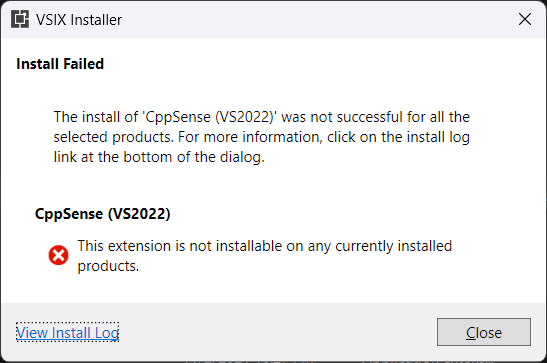
If you try to install CppSense on a version of Visual Studio that is not supported, you will see the following dialog:
Microsoft WebView2 Runtime

If you want to use the Documentation Browser feature, you must install Microsoft WebView2. CppSense packages the WebView2 bootstrap installer. When using the Documentation Browser, CppSense will check if WebView2 is already installed and if the version is supported. If either is not true, you will see the following message. Follow the instructions to download and install WebView2.
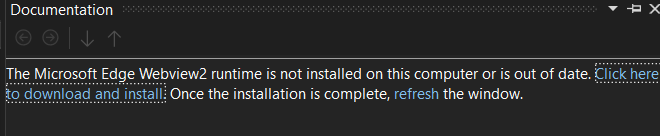
The Microsoft Edge Webview2 runtime is not installed on this computer or is out of date.
                    Click here to download and install. Once the installation is complete, refresh the window.

Note: An Internet connection is required to install the runtime.

Beta Repository

By default, if you install the beta version of CppSense it will also add the beta repository to Visual Studio's Extension Manager. This allows Visual Studio to automatically keep it up to date. Uninstalling the CppSense Beta package will remove the repository as well.

Uninstallation

To uninstall CppSense, use Visual Studio's Extension Manager. Select "Installed" from the menu on the left, and find CppSense from the list. Pressing "Uninstall" will remove CppSense when you close Visual Studio.

To open the Extension Manager go to Extensions-> Manage Extensions menu or press CTRL SHIFT X

License

You can buy a license from the web site. Each license of CppSense is personal, meaning it's assigned to you and cannot be used by someone else. If you have multiple machines that you use Visual Studio on, you can install the software on each one. There is no installation limit.

Free Trial

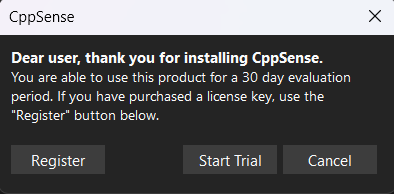
You can try CppSense for up to 30 days. You can do this simply by downloading & installing it from the site - you don't need a registration or activation key. If you don't have a license, CppSense will show the following dialog at startup. Clicking on "Start Trial" will start your 30-day evaluation period.
Current License & Expiration

You can see your current license and its expiration (if any) in the About dialog. You need to Enable CppSense if it's currently disabled so that it can read the license first.

To open the About dialog go to Extensions->CppSense->Help->About CppSense...

Functionality

This section of the documentation details the functionality of CppSense. The main purpose of the product is to reduce friction for C++ developers that use Visual Studio.

If you have ever used C#/.NET in Visual Studio, you will be used to seeing a lot more tooltip details about classes, functions and parameters, as they are extensively documented. Unfortunately, this is not true for C++, as the STL implementation has virtually no comments. CppSense attempts to bridge this gap by adding the missing descriptions.

How does it work

CppSense has a built-in database of indexed symbols and their descriptions. This data is gathered and processed using cppreference.com as a source. Since the database is stored offline and indexed, CppSense can search very quickly for matching symbols when it needs to. This powers most of the features such as Enchanced Tooltips, Context Sensitive Search, Symbolic Links and Search Symbol By Name.

When matching symbols, CppSense uses VS's intellisense features to contextually match the symbol. Because of this, CppSense is able to figure out the correct symbol and overload most of the time.

CppSense doesn't currently use additional source-code analyzers, such as clangd. It only relies on functionality provided by Visual Studio and heuristics. This makes it very lightweight.

Quick Info Tooltips

When hovering over a symbol, CppSense will lookup the database for a matching description. It will then append and format the description to the intellisense tooltip box.

It's important to note that type and parameter names differ frequently between the documentation and Microsoft's implementation. For this reason, CppSense uses a heuristic algorithm to match the symbols. It takes into consideration the following factors when trying to find possible candidates for a match:

  • Symbol name and namespace, accounting for aliases
  • Number of parameters, accounting for default parameters
  • Parameter types, accounting for pass by reference/pointer/value
  • Parameter names
  • Specifiers, such as noexcept or constexpr
CppSense will rank multiple possible overload candidates by a heuristic evaluation function. This means sometimes it might resolve the wrong match.

CppSense will try to also display any exception information available in the database about the symbol. This is presented in 2 different views:

  • Only the exception symbols are shown
  • The raw exception description is shown
You can control the visibility of exception information in Extensions->CppSense->Options->Display Tooltip Exceptions.
ShowExceptions are always shown if available.
Show if symbols are availableExceptions are only shown if exception symbols are available.
HideException information is not shown.

CppSense will "linkify" symbols inside Quick Info Tooltip signature declarations. In the screenshot below, all occurrences of std::string and std::vector are links you can click on to navigate to the documentation.

Screenshot of the symbol links feature.

Symbolic links can handle the following symbols:

  • Parameter and result types, such as both std::strings above.
  • Templates, such as in std::vector<::string> both std::string and std::vector are linkified.
  • Member functions and classes, eg. in std::string::append both string and append are links.
It's recommended to disable Visual Studio's "Search Documentation" links inside tooltips. They take extra space and are replaced by functionality provided by CppSense, such as Symbol Links. You can disable them in Tools->Options->Text Editor->C/C++->Advanced (Enable Help On Quick Info).

Parameter Info Tooltips

While typing, CppSense will also match the current symbol with the database and display information about the function and the current parameter. As you type, CppSense will re-evaluate the best overload for the current symbol and if a better match is found, it will switch to it.

CppSense will rename parameters used in description texts to match the name used by the implementation. This makes it easier to read and understand the documentation.

You can toggle parameter renaming in Extensions->CppSense->Options->Rename Tooltip Parameters.

There are a few limitations for Parameter Info tooltips, imposed by Visual Studio currently:

  • Unlike Quick Info tooltips, descriptions cannot contain formated text, such as links or colors.
  • In certain cases, intellisense can lag behind typing, so CppSense might not be able to pull the documentation.

Context Sensitive Search

CppSense replaces the built-in Context Sensitive Search (F1) of Visual Studio with an equivalent one that searches cppreference.com instead. Unlike the built-in search, CppSense is able to figure out the exact member function and overload you are currently looking at and navigate directly to its documentation.

Context Sensitive Search rebinds F1 to let CppSense handle searches. If the current file type is not C or C++, the command will fallback to VS's default F1 command.
Due to VS limitations, Context Sensitive Search will not work while you are debugging.

Context sensitive search operates in 2 modes:

  • If you have no text selected, F1 will search for the symbol under caret.
  • Otherwise it will perform a bulk search for every symbol in the text selection and give you menu to chose which one to navigate to.
If multiple symbols are found, you can control how they are sorted in Extensions->CppSense->Options->Sort Context Sensitive Help Results.
Sort alphabetically Sorts results in ascending alphabetical order.
Sort by source orderDoesn't sort. Results will appear in the order they are in the source file.
If multiple symbols are found, you can group the result in Extensions->CppSense->Options->Group Context Sensitive Help Results.
TrueGroups member functions by class name.
FalseNo grouping is performed.
Searching for symbols in a large text selection might take a long time. To prevent stalls, CppSense has a limit of how many results it will look for before returning them. You can change the limit in Extensions->CppSense->Options->Max Context Sensitive Help Results.

Search Symbol By Name

CppSense adds to Visual Studio the ability to search for C and C++ symbols by name.

You can open the window by going to do Extensions->CppSense->Options->Search Symbol In Documentation. You can also press CTRL SHIFT D.

The search symbol in documentation window offers the following functionality:

  • You can search for all symbols in a namespace or class. Eg. searching for "filesystem::" will show all members of the filesystem namespace
  • Partial name searches are supported. Eg. "push" will return symbols "push_back", "push_front" and "push"
  • Separating symbols by space will require both symbols to be present in the name.
  • Searching takes into account aliases. Eg. searching for "std::u16string" will return results for std::basic_string.

Documentation Window

CppSense embeds a Microsoft WebView2 browser in a Visual Studio window. This allows you to use navigation and search features without opening an external browser.

The documentation windows requires the Microsoft WebView2 runtime to be installed. See Microsoft WebView2 Install section.
The embedded browser support styling to match Visual Studio's theme. You can control this behavior in Extensions->CppSense->Options->Custom theme.
AutomaticAttempts to match the Visual studio theme. Uses dark mode if VS is in dark mode and light otherwise.
Prefer dark themeUses dark mode regardless of the VS theme.
Prefer light themeUses light mode regardless of the VS theme.

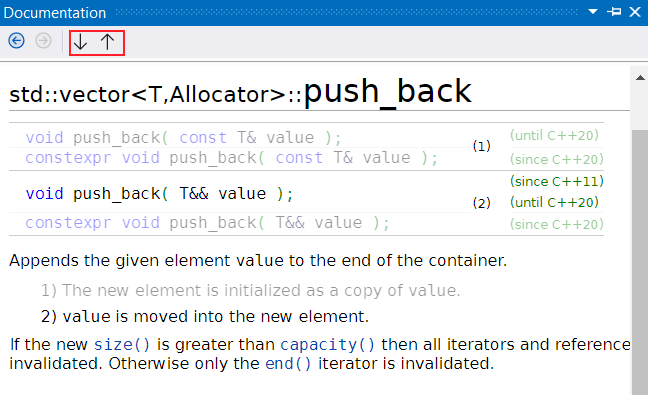
The documentation window also supports signature highlighting. This feature is used by Context Sensitive Search and Search Symbol By Name when navigating to distinguish the signature of interest from the rest. You can change the signature that's currently highlighted using the up/down arrows in the toolbar:
Enable/Disable CppSense

You can temporarily disable CppSense via Extensions->CppSense->Enable/Disable CppSense. This allows you to quickly turn it back on if you need to, since the extension will still be loaded at VS start.

To permanently disable the extension so that it doesn't even get loaded, go to Extensions->Manage Extensions. Find CppSense in the Installed Extensions list and click "Disable".

Attribution & EULA

You can temporarily disable CppSense via Extensions->CppSense->Enable/Disable CppSense. This allows you to quickly turn it back on if you need to, since the extension will still be loaded at VS start.

To permanently disable the extension so that it doesn't even get loaded, go to Extensions->Manage Extensions. Find CppSense in the Installed Extensions list and click "Disable".